To send your documents to participants, you must first publish them.
What does "publish" mean? It means that the document is added to the participants assigned to that project.
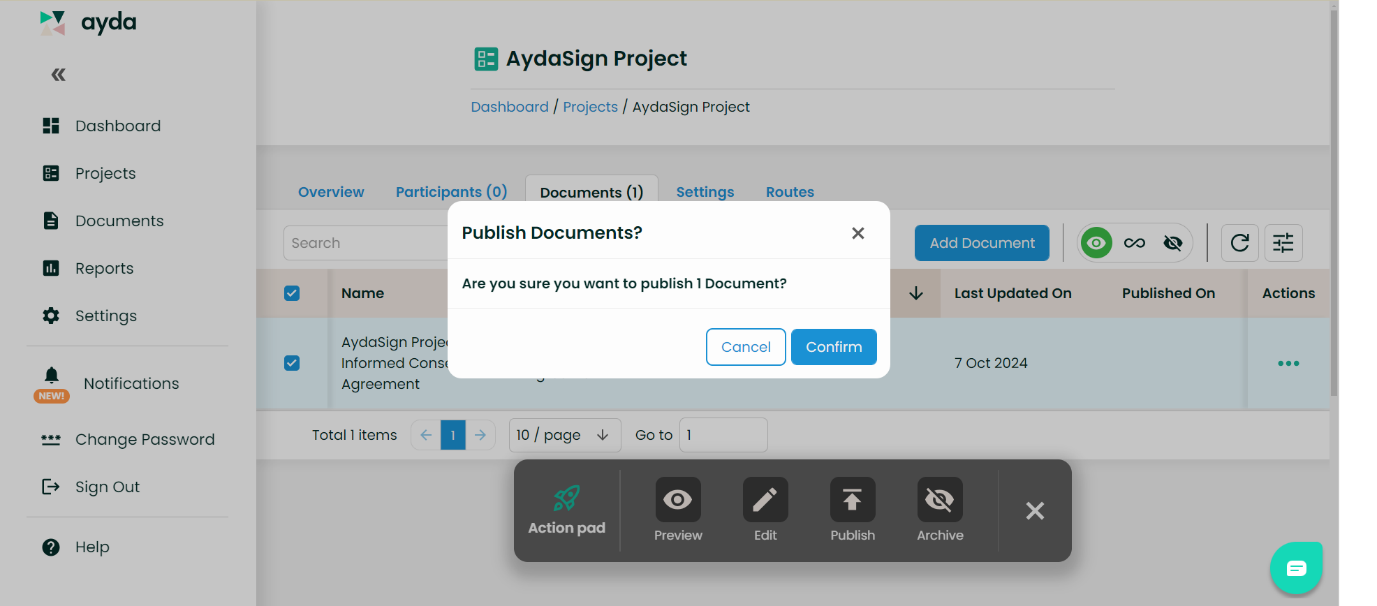
Once you have published the document, it will appear under the Participants tab and be assigned to all participants in the project.
After adding the document to your project and ensuring it is published, the next step is to send it to participants for signing.
- Navigate to the Participants tab within the project and select the participants you would like to send the document.
- Click on Communication: Choose whether to invite participants to confirm their attendance and sign the document or simply notify them to sign the document.
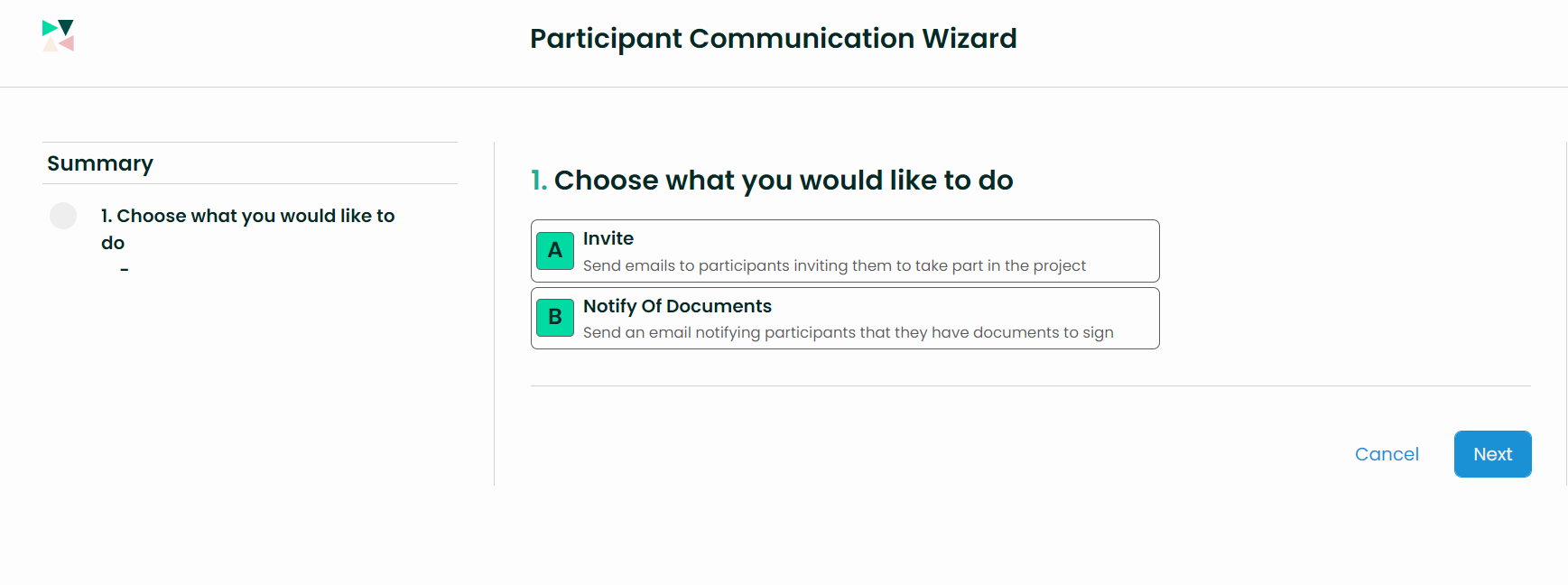
Once you have sent the communication, you can check the Participants grid to see whether each participant has signed the document. A green icon indicates that they have signed, while a red icon shows that they have not.
For more detailed information, you can select the assignment, click on the three dots (“Action”), and then choose Details. This will allow you to check if the participant has received, read, or signed the document.
Please note that if you have enabled the reminders option in your settings, participants will receive reminders to sign the document based on the frequency you selected.
Was this article helpful?
That’s Great!
Thank you for your feedback
Sorry! We couldn't be helpful
Thank you for your feedback
Feedback sent
We appreciate your effort and will try to fix the article